Table of Contents
Navigating the platform
The eKaizen interface has two main navigation areas: the main menu on the left and the top bar. If you have access to multiple plants, you will also see a plant switcher. What each user sees depends…

Table of Contents
The eKaizen interface has two main navigation areas: the main menu on the left and the top bar. If you have access to multiple plants, you will also see a plant switcher. What each user sees depends on their role and permission levels - some items may not be visible to everyone.
Main menu (left side)
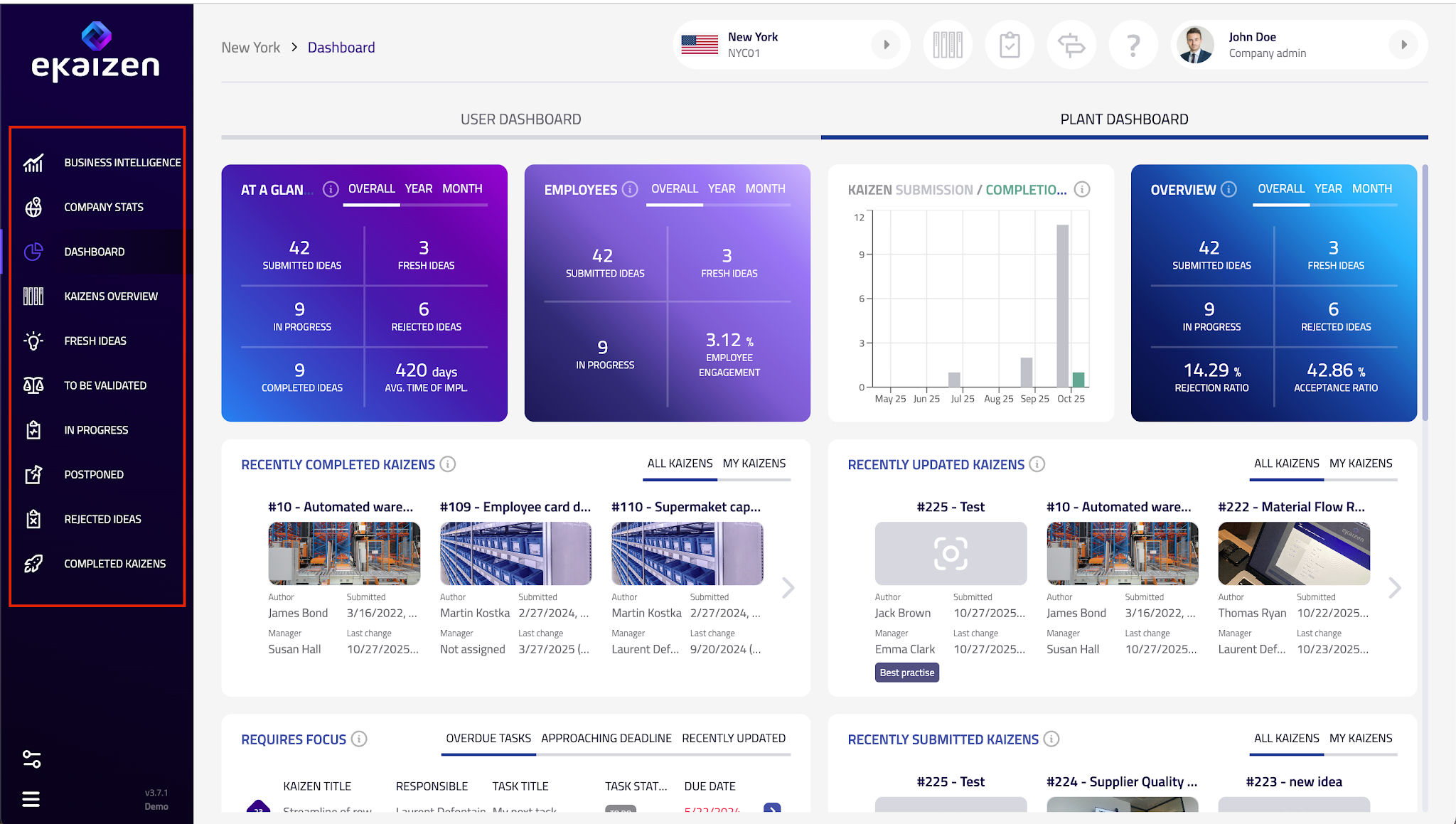
The vertical menu on the left gives you access to the core areas of the platform:
- Business intelligence - for companies using the paid BI add-on
- Company stats – basic overview of company-wide results and statistics.
- Dashboard – your personal dashboard and the Plant dashboard.
- Kaizens overview – full list of submitted ideas.
- Fresh ideas – newly submitted ideas waiting for review.
- To be validated – ideas that require validation.
- In progress – ideas currently being implemented.
- Postponed – ideas put on hold.
- Rejected ideas – ideas that were not approved.
- Completed kaizens – successfully implemented improvements.
This menu allows you to quickly access ideas by their status.
Top bar (upper-right corner)

In the top bar you’ll find shortcuts for your daily work:
- Quick links – open portals or submission forms directly.
- Support links - links to our support portal, release notes and this knowledge base.
- Task overview – icons for a quick look at your tasks, projects or rewards (if you have sufficient user permissions).
- User menu – click your name to open My profile (personal settings, dashboard preferences, notifications) or log out.
Plant switcher
If you have access to more than one plant or site, you will see the plant switcher in the top bar.
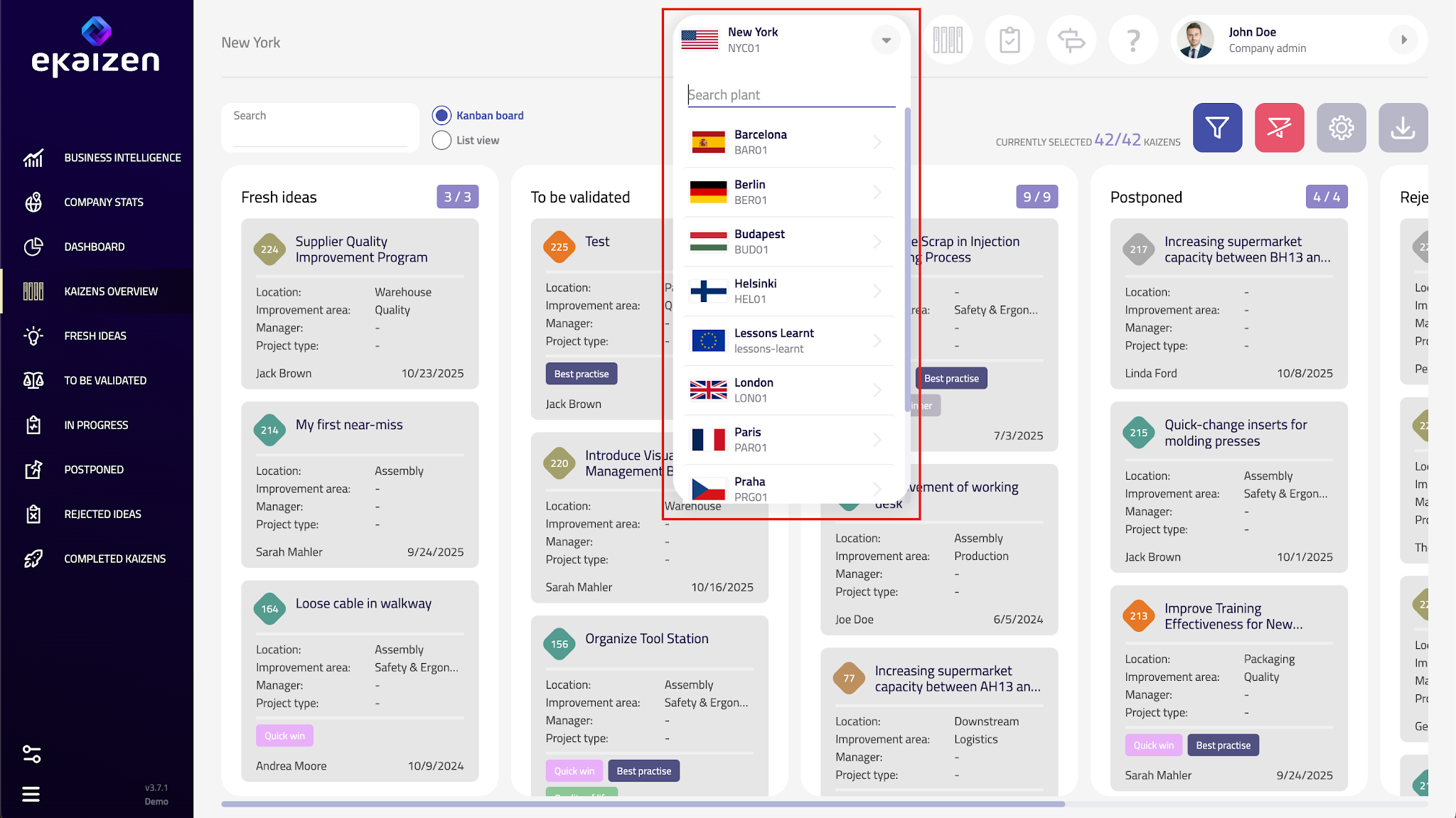
- It shows the site you are currently working in.
- Click it to change to another plant.
- This ensures the dashboards, submissions, and reports you see belong to the correct site.
With the left menu for idea-related views and the top bar for personal tools and quick links, you can move around eKaizen quickly and always find what you need.
How did we do?
My profile