Table of Contents
My profile
In My profile you can adjust your personal settings in eKaizen. This includes your basic details, language, notification preferences, and how your personal dashboard looks. Navigation. To access My p…

Table of Contents
In My profile you can adjust your personal settings in eKaizen. This includes your basic details, language, notification preferences, and how your personal dashboard looks.
Navigation
To access My profile, click on your name in the upper-right corner of the screen and select My profile from the menu.

User preferences

In this section you can:
- Update your name, email, or phone number.
- Upload a profile picture.
- Change the language of the application.
- Add a short personal text (optional).
- Decide on user options such as:
- Keep me signed in – stay logged in when opening the portal and submission forms, so your details are used automatically.
- Drag & drop in Workflow – reorder tasks in a project by dragging them.
- After moving project to another phase – choose what happens after you move a project forward:
- Checked: stay in the current phase list and continue with the next project (within that phase).
- Unchecked: stay on the same project, now opened in its new phase.
Personal dashboard
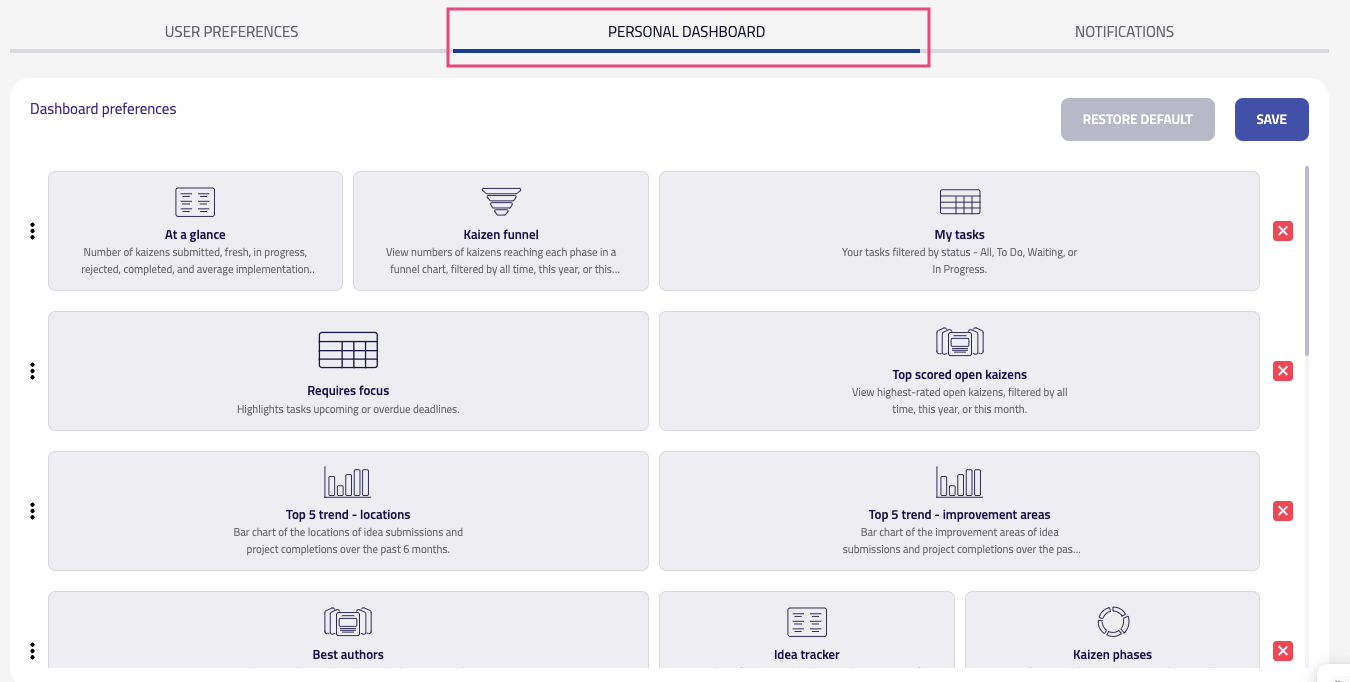
The Personal dashboard is fully customizable, because every role in eKaizen works with different priorities:
- If you want to stay on top of your tasks and communication, place these widgets at the top.
- Executives focused on financials can prioritize widgets showing savings or ROI.
- Dozens of widgets are available, covering topics such as most active authors, top scored projects, trends by location, or improvement areas.
How it works
- Click on the + button and choose a row layout – e.g. four equal widgets (1+1+1+1), two larger ones (2+2), or a wide widget with a small one (3+1).

- Select widgets that fit the chosen layout from the widget library.
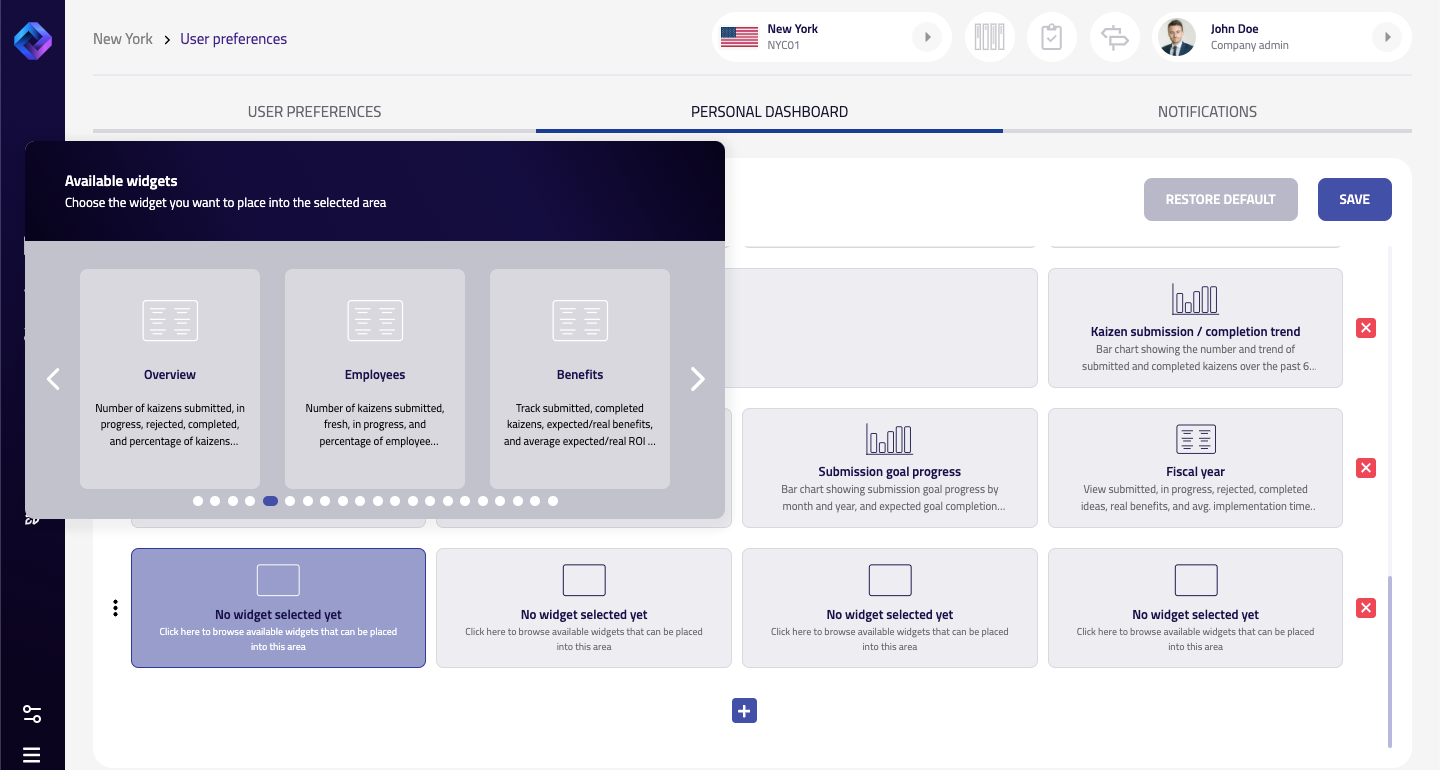
- Rearrange rows by dragging them up or down.
- Remove rows you don’t need using the red X.
- Use Restore default at any time to return to the original setup.
Notifications
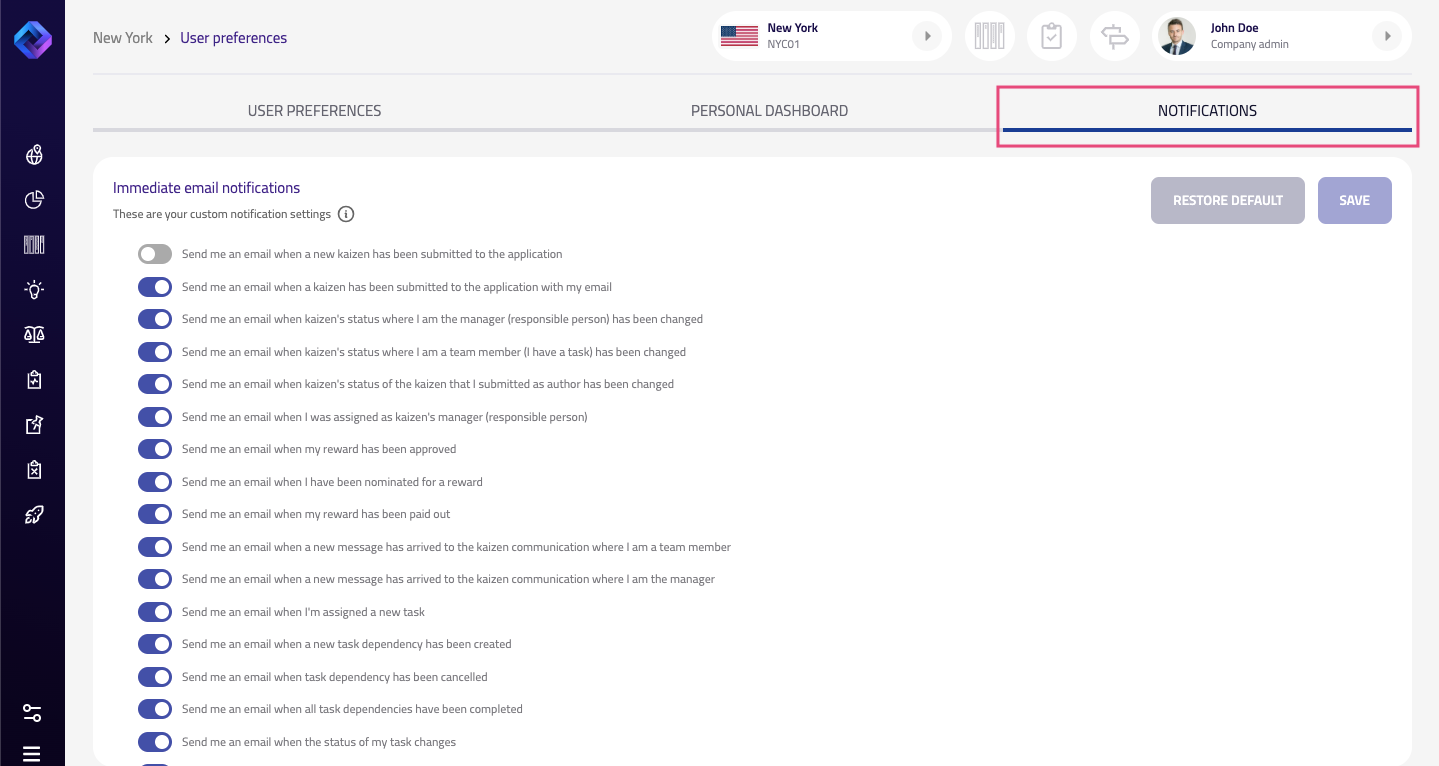
Here you can set when you want to receive email updates. For example, you can be notified when:
- You are assigned a new task.
- A kaizen you manage changes status.
- Your reward has been approved or paid out.
Use the toggles to turn notifications on or off, then click Save.
👉 Adjusting your profile helps you make eKaizen work the way you need it - from the language you use, to how you track your work, to the updates you want to receive.
How did we do?
Navigating the platform