Table of Contents
Configuring Main preferences
This article is part of the Administrator manual and applies only to users with access to Plant Preferences. General parameters. Plant-level baseline settings that shape naming, reporting periods, cu…

Updated
by eKaizen Support
Table of Contents
This article is part of the Administrator manual and applies only to users with access to Plant Preferences.
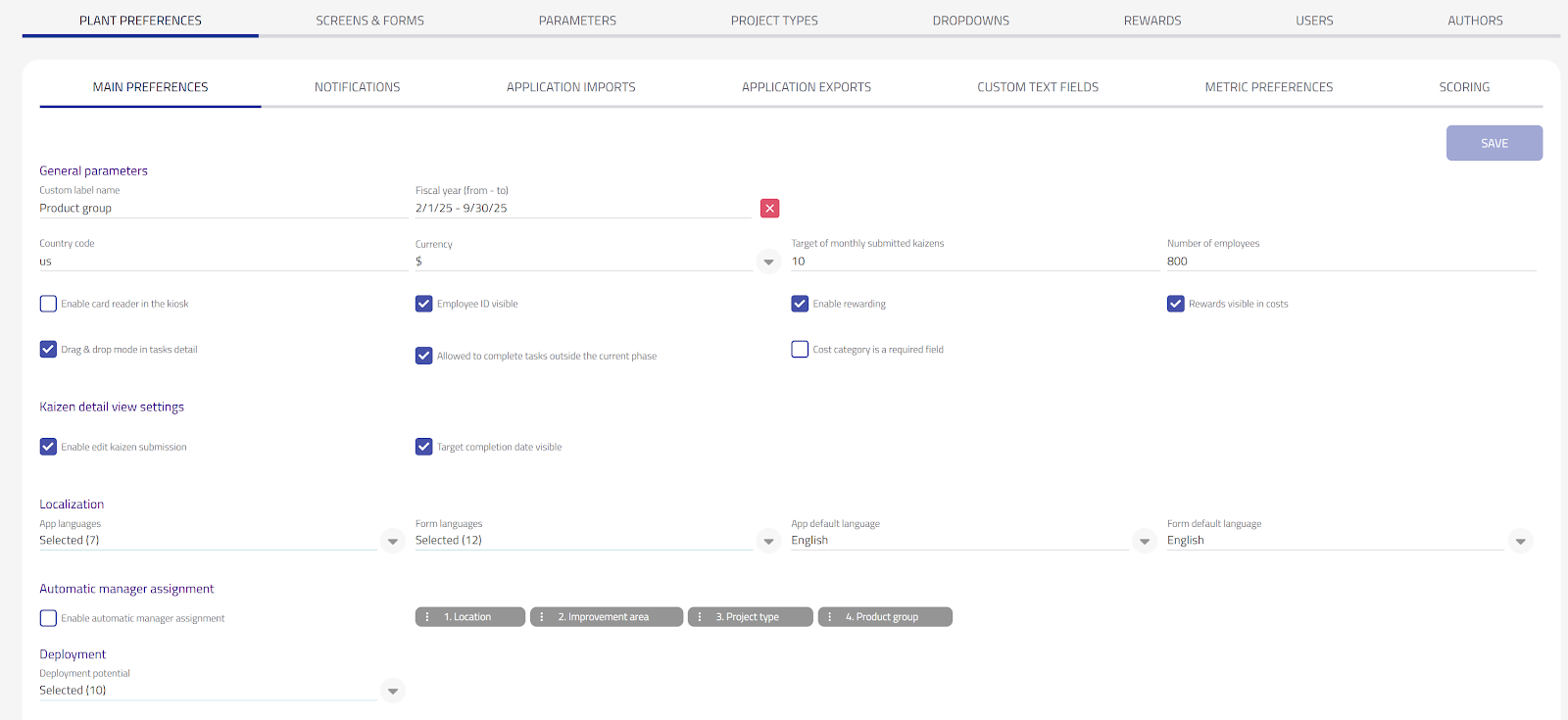
General parameters
Plant-level baseline settings that shape naming, reporting periods, currency, and key behaviors across eKaizen. Set your fiscal window, local conventions, monthly kaizen targets, and enable/disable core features (rewards, task handling).
Fields
- Custom label name
The display name for your optional extra category (e.g., product family, value stream). This label can appear on forms, filters, and reports. Renaming changes the label only—existing data stays mapped to the same category. - Fiscal year (from–to)
Defines the plant's fiscal window. Set any 12-month (365-day) range, typically aligned to the company's fiscal year. Can be set for the current or previous fiscal year; dashboards and reports use this period for date selection. - Country code
Determines the flag shown in the plant switcher (visual identification for users). - Currency
Sets the currency used to enter and display financial indicators (costs/savings/benefits) for the plant. - Target of monthly submitted kaizens
The plant’s monthly kaizen submission goal (a number you choose). Widgets compare this target against actual submissions to show progress for the month and across the year. - Number of employees
Plant headcount for participation metrics. Widgets compare the count of unique kaizen authors (by email/ID) to this number to show participation rate (e.g., unique submitters ÷ employees).
Feature switches
- Enable rewarding
Turns the Rewards module on/off. When enabled, you can assign rewards to authors/co-authors after an idea/project is implemented and evaluated. When disabled, rewards features are hidden across the app. - Drag & drop mode in task detail
Enables drag-and-drop interactions in the task detail view (e.g., moving/reordering) to speed up task handling. - Allowed to complete tasks outside the current phase
Controls whether a task can be completed in a different phase than the one it’s assigned to.
On: A task assigned to “In progress” can be completed while the kaizen is still in “Fresh idea.”
Off: Tasks can only be completed when the kaizen reaches the task’s designated phase
- Cost category is a required field
Makes Cost category mandatory in Financial Indicators. Savings/costs entries cannot be saved until a category is selected from the dropdown.
Kaizen detail view settings
- Enable edit Kaizen submission
Allows users to edit the original idea description fields on the Kaizen detail page (both Current state and Proposed solution).
On: Authorized users can modify those text fields after submission.
Off: The author’s original submission stays locked and cannot be changed.
- Target completion date visible
Controls visibility of the Target completion date field in the Project Charter sidebar.
On: The field is shown and can be filled/updated.
Off: The field is hidden from the charter.
Localization
- App languages
Select which languages (from those enabled company-wide) are available for the plant. Users choose their preferred app language in My Profile; only the languages selected here will be offered. - Form languages
Choose the languages available on submission forms. In the form, users switch languages by clicking the flag. Only the selected languages appear. - App default language
The default UI language for this plant. Must be one of the App languages selected above. - Form default language
The initial language shown when someone opens a submission form. Must be one of the Form languages. Plants typically set the local language as default and include English as a common secondary option.
Automatic manager assignment
- Enable automatic manager assignment
When on, new ideas are auto-assigned to a responsible person based on the selected parameters on the submission (e.g., Location, Improvement area, Project type, Custom category). The system follows the priority order you define and assigns the first matching owner it finds.
How it works
- The system checks the first priority (e.g., Location).
- If the submitted value (e.g., “Warehouse”) has a responsible person configured, that person is assigned.
- If not, the system moves to the next priority (e.g., Improvement area), and so on.
- If no match is found for any priority, the kaizen remains unassigned.
Notes
- Priorities can include: Location → Improvement area → Project type → Custom label category (or any order you set).
- Changing the priority list affects future assignments; existing assignments are not changed automatically.
- If submitters edit a parameter after creation, assignment does not change retroactively.
Deployment
- Deployment potential
Used on the Project Charter to indicate whether a Kaizen has potential to be reused at other plants. Select plants where the kaizen can be deployed if marked as one with a Global deployment potential. - Local – The idea can be copied/duplicated within the same plant.
- Global – The idea can be deployed to other plants in the company, creating a copy with selected parameters carried over.
Didn’t find what you were looking for? Reach out to your administrator, your eKaizen contact person or write to contact@ekaizen.app.
How did we do?
Setting up the portal
Configuring parameters in Plant preferences