Table of Contents
Configuring parameters in Plant preferences
This article is part of the Administrator manual and applies only to users with access to Plant Preferences. Parameters are configurable settings used to populate drop-down menus across eKaizen (e.g.…

Table of Contents
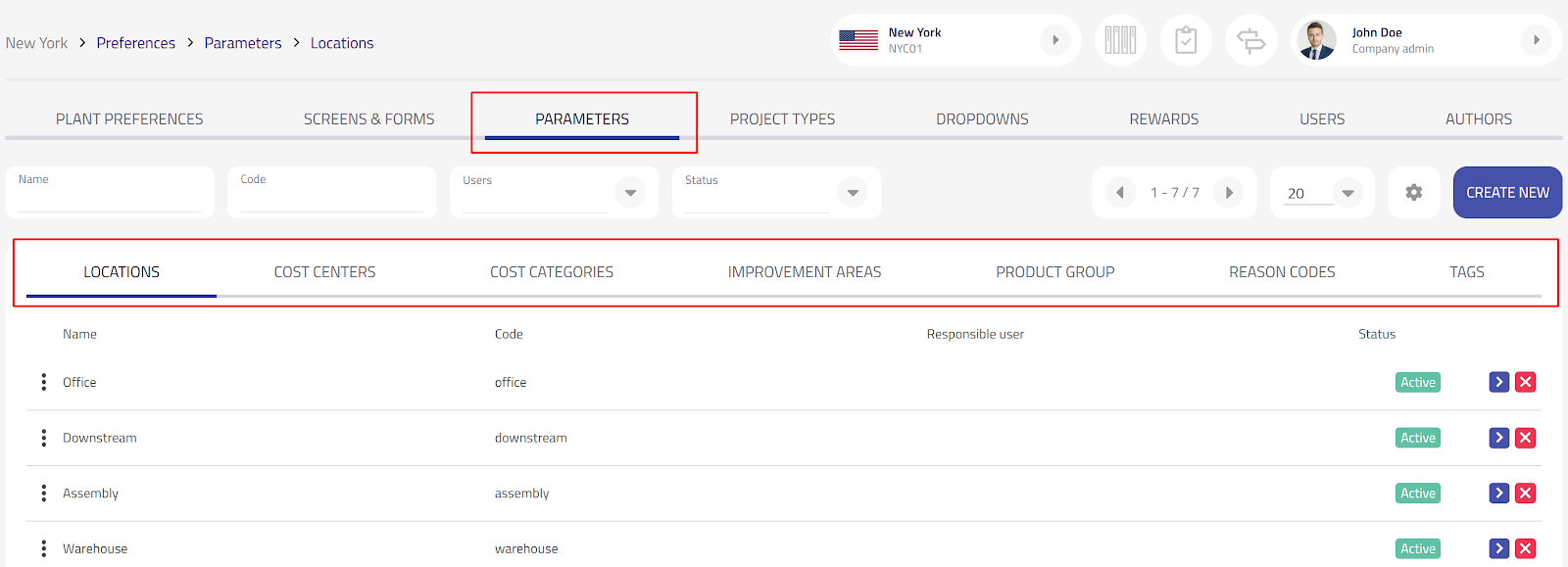
Parameters are configurable settings used to populate drop-down menus across eKaizen (e.g., Submission forms and Project Charters). They help each plant stratify data consistently—by locations, improvement areas, cost structures, tags, and an optional custom label category (an extra category you can define to fit your needs). Parameters are managed per plant and respect role-based visibility. You can access the configuration via Plant Preferences → Parameters.
Tabs available: Locations, Cost Centers, Cost Categories, Improvement Areas, Custom category (as defined by each client), Reason Codes, Tags. All of these parameters can be used in filters in the Kaizen overview.
Responsible person (field used in multiple parameters)
For most classification parameters (e.g., Locations, Improvement Areas, Custom Label Category, and others where available), you can assign a responsible person to an individual value.
Examples: assigning “Office” → John Doe, “Environment” → Jane Smith, or a specific custom label value → a process owner.
Where to set it
Open the relevant Parameter tab → edit or create a value → choose the user in the Responsible person field and save.

How it’s used
Automatic manager assignment: When this feature is enabled (see Main Preferences), the system checks the submitted parameters in your priority order (e.g., Location → Improvement area → Project type → Custom label). If a submitted value has a responsible person configured, that user is auto-assigned to the new idea/proposal. If not, the system moves to the next parameter in the priority list.
Locations
Used to tie ideas/projects to physical or virtual locations in the plant.
Examples
Name | Code |
HR department | hr |
Assembly 1 | assy1 |
Warehouse | wh |
- Keep codes short and unique (useful for reporting/integrations).
- Deactivating hides a value from new entries but preserves history.
Cost Centers
Used to tag financial ownership or budgeting areas.
Examples:
Name | Code |
Raw materials | rm |
CNC machining | cnc |
Quality control | qual |
Cost Categories
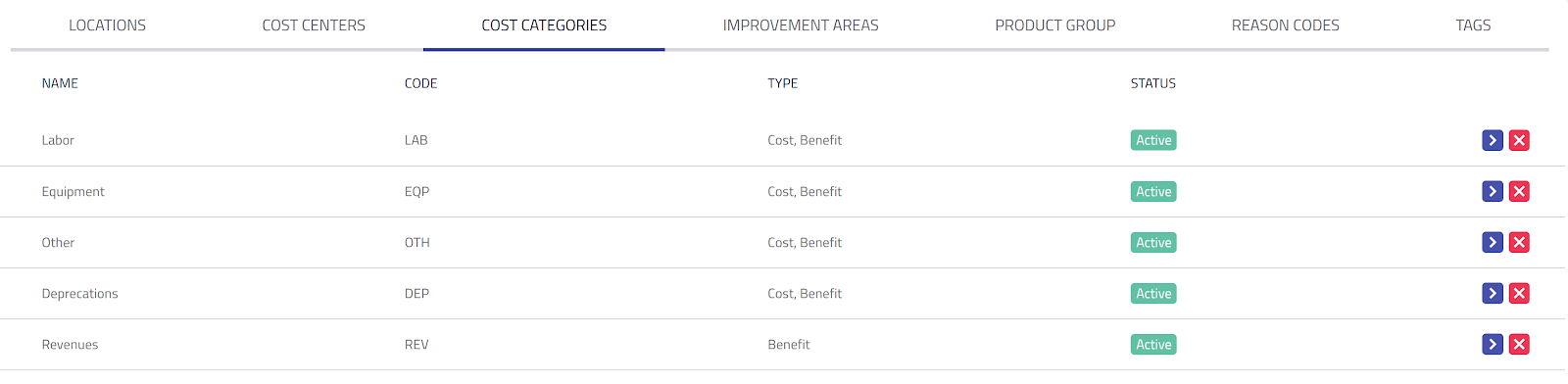
Defines the buckets used for financial effects in eKaizen. A cost category can be used for costs, for savings, or for both—you decide when configuring your financial indicators and reports.
Examples
Name | Code |
Labor | lab |
Equipment | eqp |
Depreciations | dep |
Improvement Areas
High-impact themes that align to where the company intends to focus improvement. These typically mirror strategic priorities (e.g., company strategy for the year), compliance or safety goals, and operational objectives such as energy saving, productivity, quality, logistics efficiency, etc. Use a concise list that reflects your current strategy so reporting highlights progress where it matters most.
Examples
Name | Code |
Safety & Ergonomics | safety |
Environment | enviro |
Production | prod |
Custom category
An optional, customer-defined category you can use for any additional grouping (e.g., product family, value stream, customer segment). Name it to match your use case; it behaves like other dropdown parameters.
Examples
Name | Code |
Product A | pa |
Product B | pb |
Product C | pc |
Reason Codes
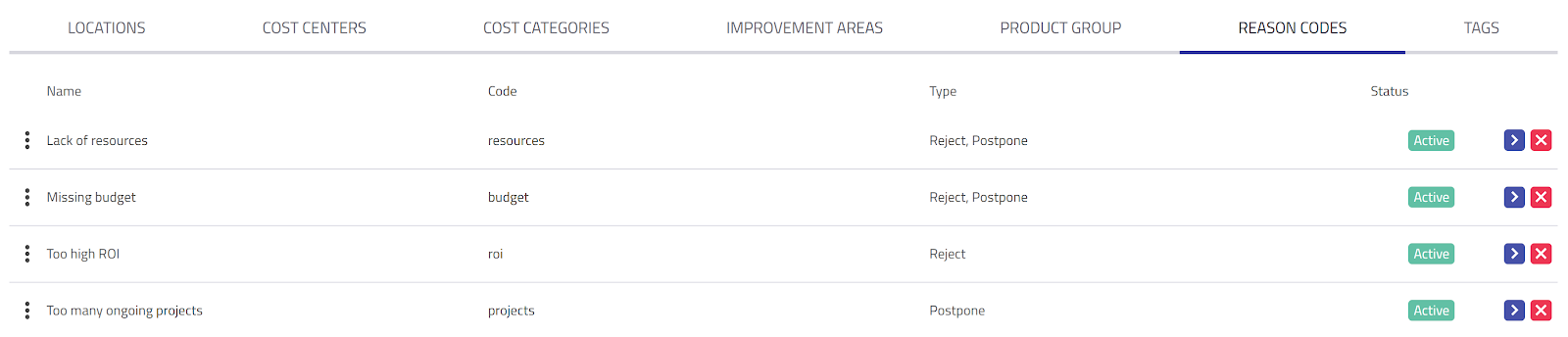
Standardized reasons used when rejecting or postponing ideas. A reason code can be configured for postponing, rejecting, or both (i.e., the same code may appear in either or both decision steps, depending on your setup).
Examples
Name | Code |
Lack of resources | resources |
Too many ongoing projects | projects |
Tags
Lightweight labels for additional classification and filtering. Tags can be added to each Kaizen and are visible on the Kaizen overview, making it easy to scan, filter, and report.
Tags in eKaizen have a graphical (color-coded) component. When a tag is created or edited, it’s assigned a specific color. Wherever tags are shown (e.g., on the Kaizen overview), the color makes them immediately recognizable, so users can quickly distinguish what each tag represents at a glance.

Good practices (quick checklist)
- Use clear Names employees recognize on the shop floor.
- Keep Codes stable, lowercase, no spaces.
- Prefer deactivating over deleting to preserve history.
- Review Reason codes with CI/leadership to match governance.
- Revisit Improvement areas annually to reflect strategy (safety, energy, productivity, etc.).
How did we do?
Configuring Main preferences
Setting up project charters