Table of Contents
Working with the project charter
Project Charter is the main screen you work with while managing projects in eKaizen. It contains all essential information - from the initial project proposal created by the author, to the details ad…

Table of Contents
Project Charter is the main screen you work with while managing projects in eKaizen. It contains all essential information - from the initial project proposal created by the author, to the details added later by the project manager and team during project execution.
It is the first tab that appears when you open any project.
Structure
The Project Charter is divided into two main sections:
- Main content (Left column) – contains the main data fields of various formats such as short text, long text, addresses, and other key information.
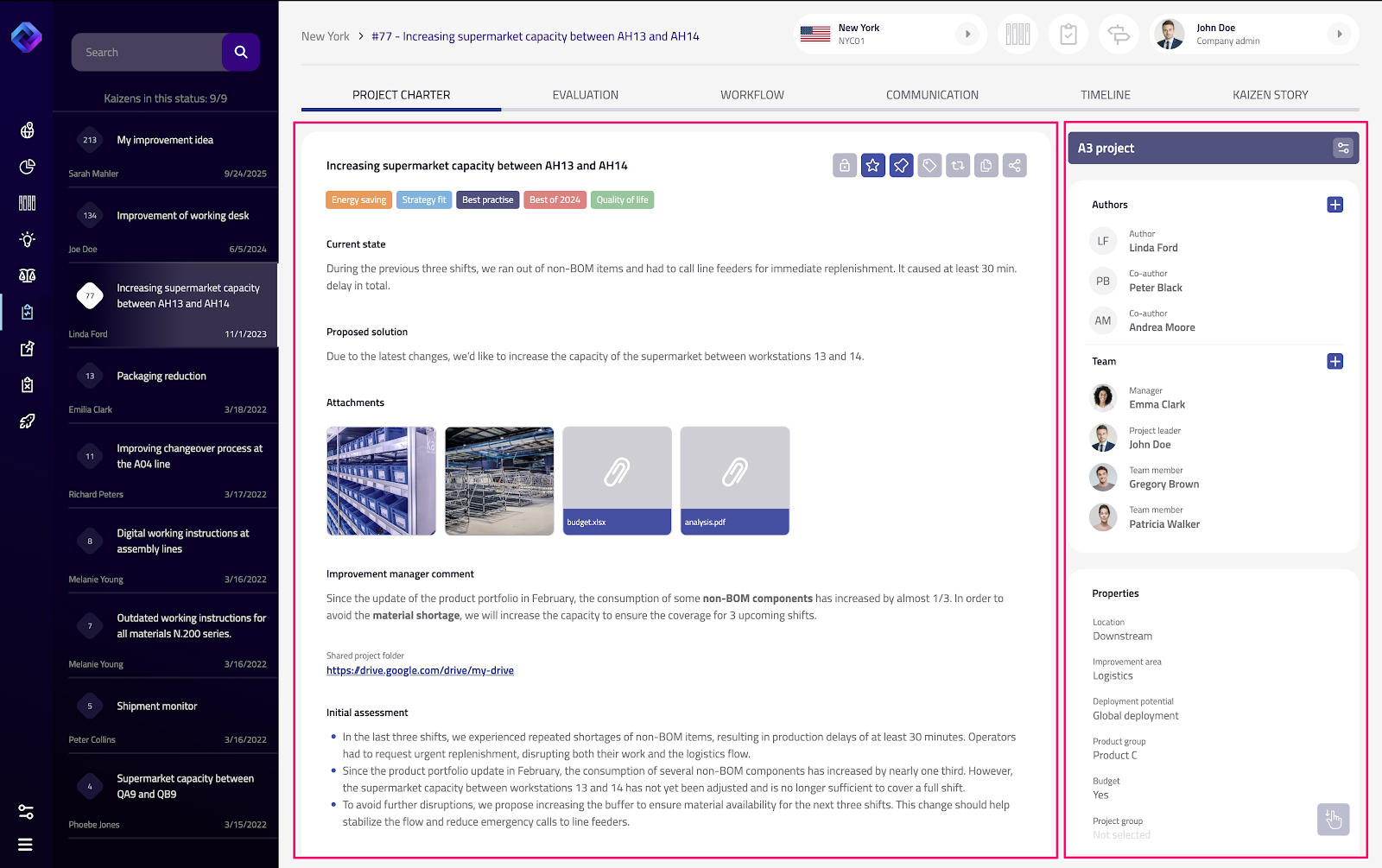
- Sidebar (Right column) – includes several management boxes, used for configuring and monitoring different Sidebar elements as shown below:
Section | Description |
Project Type | The selected Project Type of this project. If there are multiple project types configured, you can switch between them. Changing the project type will affect various project features and layouts. See the chapter [[Changing Project Types]]. |
Authors | The author and co-authors are assigned during the project submission. You can later change the author or add additional co-authors. |
Project Team | A list of users responsible for the project. There are two main roles: Manager and Project Leader. You can assign them manually or use automation, which automatically assigns responsible persons based on the defined project Properties. You can also create a full project team by adding more users with the role Team Member. |
Properties | A set of parameters used for project categorization, such as Improvement Area, Location, and other custom dropdowns. |
Deployment Potential | Use this property to enable deployment of this project. Deployment is a useful feature for sharing best practices and recommending projects that might be replicated anywhere else. See the chapter [[Project Deployment]]. |
Milestones | Allows you to define and track the list of important project dates. |
Linked Projects | Displays and manages links to other projects. See the chapter [[Working with Project Relations]] for more details. |
Timeline | Shows a selection of the most important changes and updates in the project’s history. |
Both sections are configurable and depend on the Project Type. That means the Charter automatically adapts to the selected Project Type, showing the set of fields and sections relevant for that specific type of project.
Header and Quick Actions
At the top of the main field, you’ll find a set of icons for quick actions, allowing you to manage visibility, classification, and workflow directly from the Project Charter interface.

Quick Action | Description |
Confidential Project | Each project can be locked by marking it as Confidential. When enabled, only users listed in the Project Team will see this project - all other users will not have access or visibility. You can only mark a project as Confidential if at least one user is selected in the Team section. |
Favorite Projects | You can mark a project as Favorite to create your own personal bookmarks. This feature is useful for quick access to projects you open frequently. Favorites are user-specific and visible only to the user who marked them. |
Pinned | You can pin certain projects to make them visible for all users. Pinned projects work similarly to Favorites, but the bookmarks are shared globally - if one user pins a project, it appears in the pinned list for all users. |
Tags | You can assign one or multiple tags to each project for advanced categorization and filtering. Tags are predefined and managed in eKaizen Preferences. |
Quick Movement Actions | Allows you to move the project between different stages quickly. Unlike Action Buttons, this feature lets you move the project both forward and backward between stages when necessary. |
Local Deployment | See the chapter [[Project Deployment]]. |
Global Deployment | See the chapter [[Project Deployment]]. |
Action Buttons
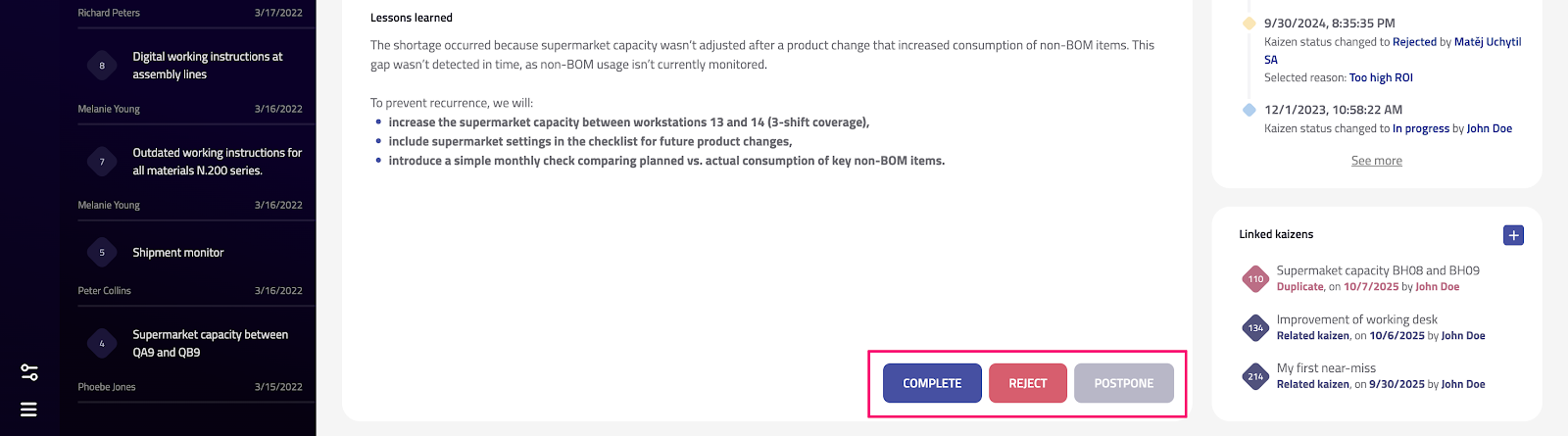
At the bottom of the main field, there is a set of action buttons used to move the Project between its stages. The available buttons vary depending on the current stage of the project.
Current Stage | Available Actions |
Fresh idea | [Accept] [Reject] [Postpone] |
To be validated | [In progress] [Reject] [Postpone] |
In progress | [Complete] [Reject] [Postpone] |
Rejected | [To be validated] [In progress] |
Postponed | [To be validated] [In progress] [Reject] |
How did we do?
Working with tasks
Working with the kaizen overview