Table of Contents
Linked projects
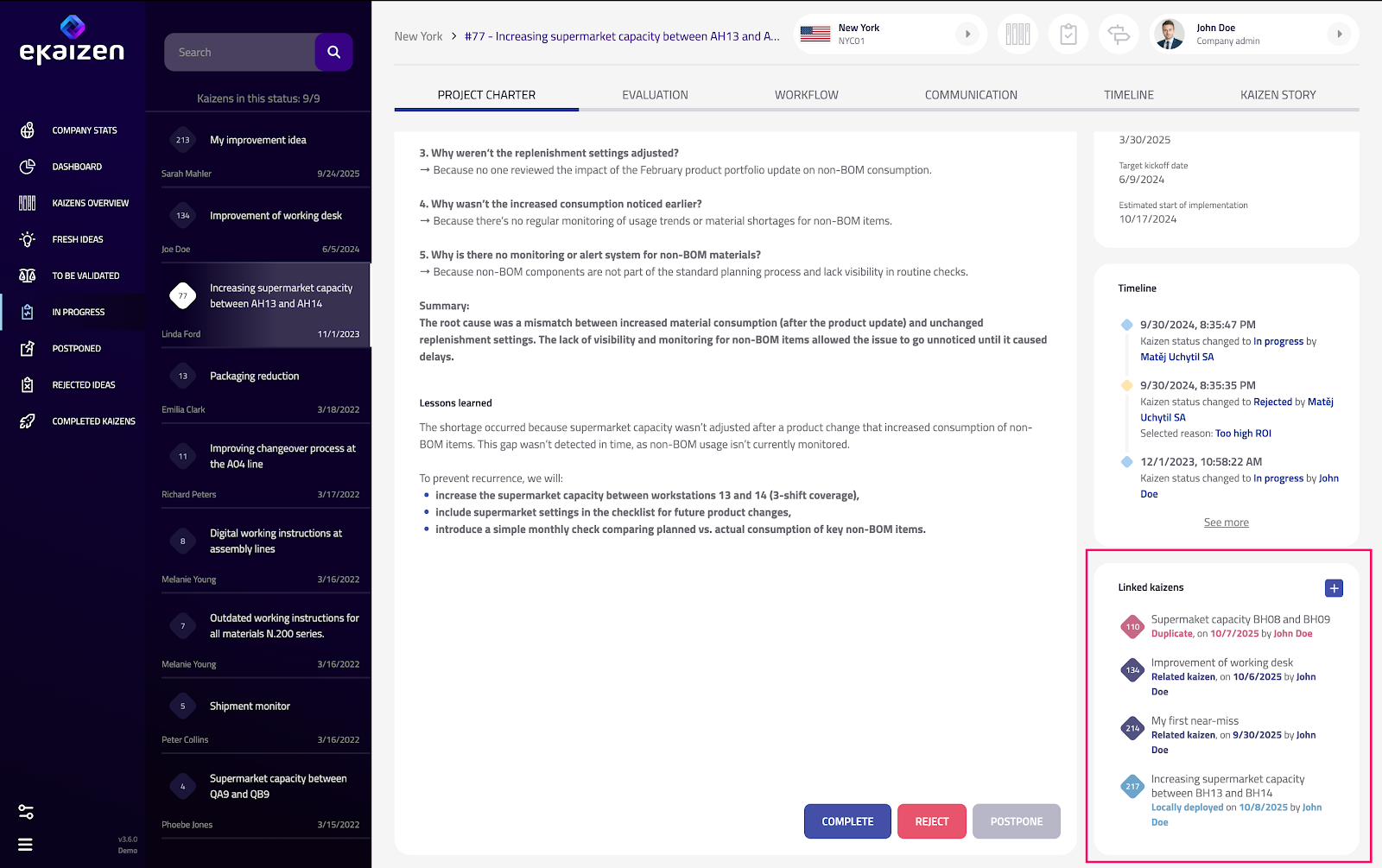
In the Project Charter Sidebar, you can find the element called Linked projects. This feature is used to create and manage different types of relationships between separate projects. Why create proje…

Table of Contents
In the Project Charter Sidebar, you can find the element called Linked projects. This feature is used to create and manage different types of relationships between separate projects.
Why create project relations
Linking related projects helps you organize and manage interconnected initiatives more effectively. It simplifies navigation and switching between projects that belong together.
Additionally, Linked projects can be evaluated and tracked collectively. Once a relation is created, a new interface appears in the Evaluation tab, allowing you to calculate and display the combined outcomes of all linked projects.
Types of links
- Related projects
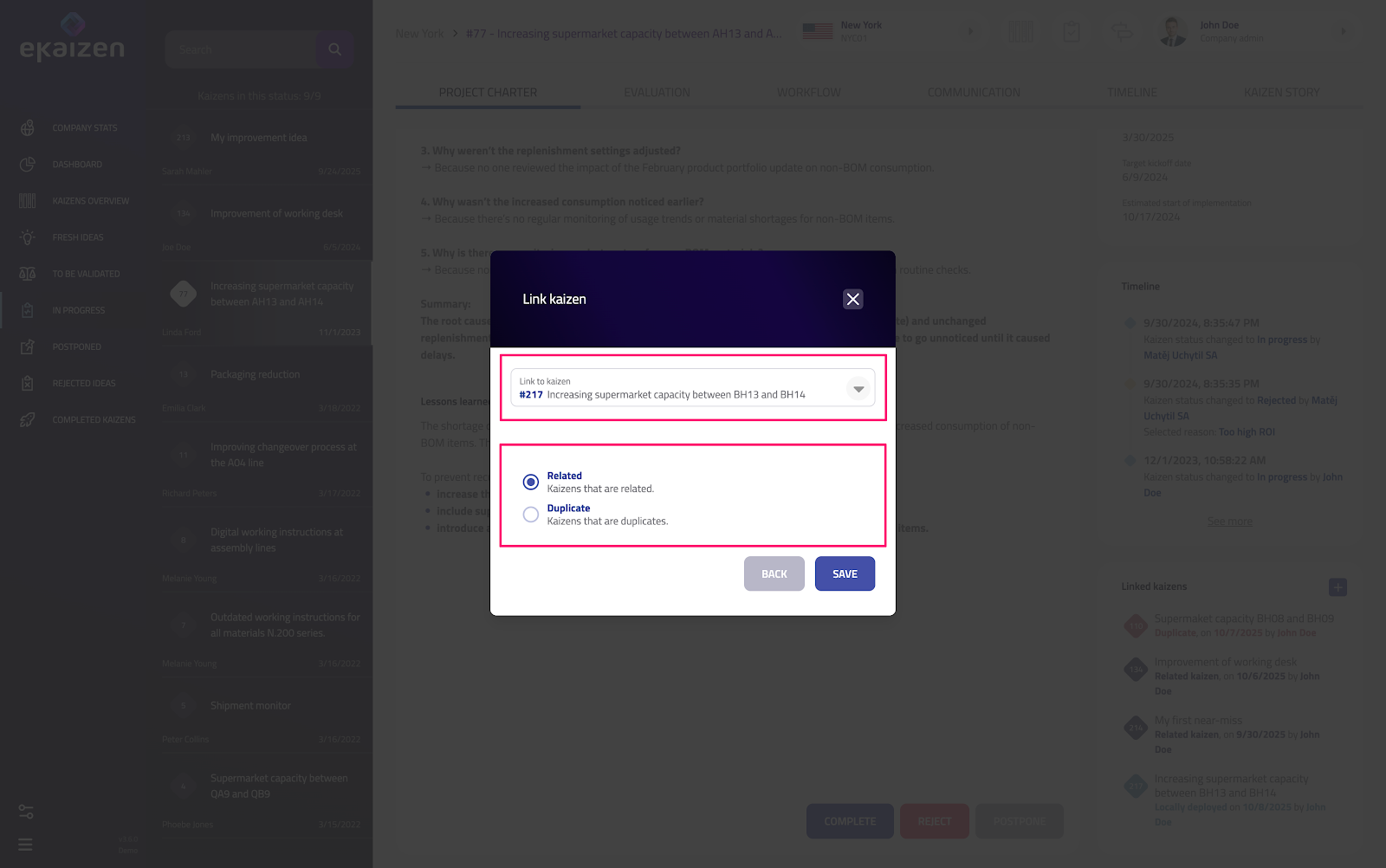
Used to link projects that need to be managed in parallel — for example, projects addressing a common issue or those initiated during the same Workshop.
- Duplicity
Used to identify and manage ideas or projects that were submitted multiple times, ensuring that only one of them is implemented.
- Local copy
Created automatically through the Local deployment feature. This link defines the relationship between the original (pilot) project and its deployed copy within the same plant.
- Global copy
Created automatically through the Global deployment feature (see the chapter: [[Project deployment]]). This link defines the relationship between the original project and its deployed copy in a different plant.
Managing relations
To create a new relation between two projects, click the [+] button. In the dialog that appears, search for the project you want to link to and select one of the available relation types that can be created manually (Related or Duplicity).
To remove an existing relation, click the [Unlink] icon next to the project you want to disconnect.
How did we do?
Understanding project types
Project deployment (Sharing best practices)