Table of Contents
Project deployment (Sharing best practices)
Project Deployment is a feature designed to streamline the replication of successful projects. It allows you to create a copy of any project and reuse its proven solutions in other locations - either…

Table of Contents
Project Deployment is a feature designed to streamline the replication of successful projects. It allows you to create a copy of any project and reuse its proven solutions in other locations - either within the same plant or across multiple plants. This helps organizations share best practices, speed up implementation, and maintain consistency across sites.
Getting Started with Deployment
To enable deployment for a specific project:
- Open the Project Charter.
- In the Sidebar, locate the Properties section.
- Find the Deployment Potential field and select the desired option.
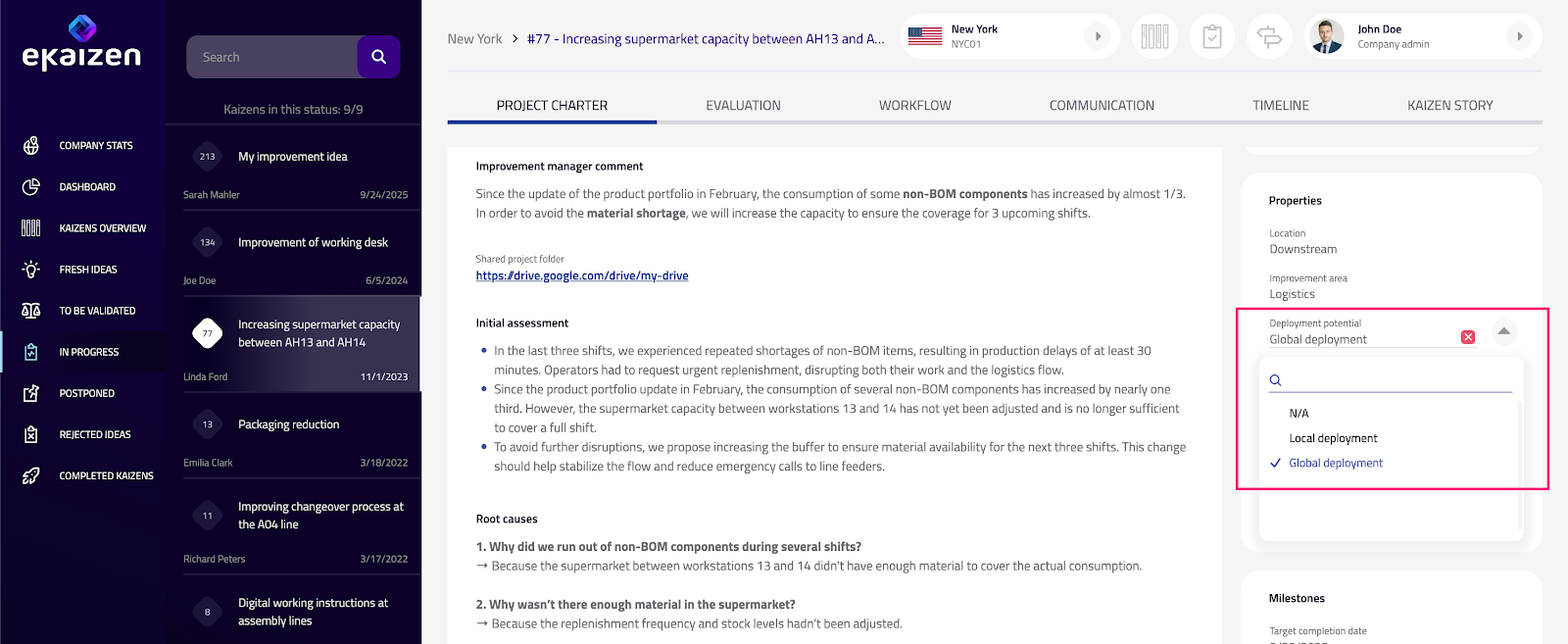
Deployment Potential Options
You can choose from the following options:
- N/A – The project has no deployment potential and should not be replicated.
- Local Deployment – The project can be deployed to other areas within the same plant. This allows you to create a local copy and implement it, for example, on another workstation or production line.
- Global Deployment – Available to customers operating multiple plants. This option enables you to share and track successful projects (e.g., best practices) across different plants within your organization.
Deploying Projects
Once a deployment potential is selected, new buttons will appear in the Quick Actions section (see Project Charter → Quick Actions).
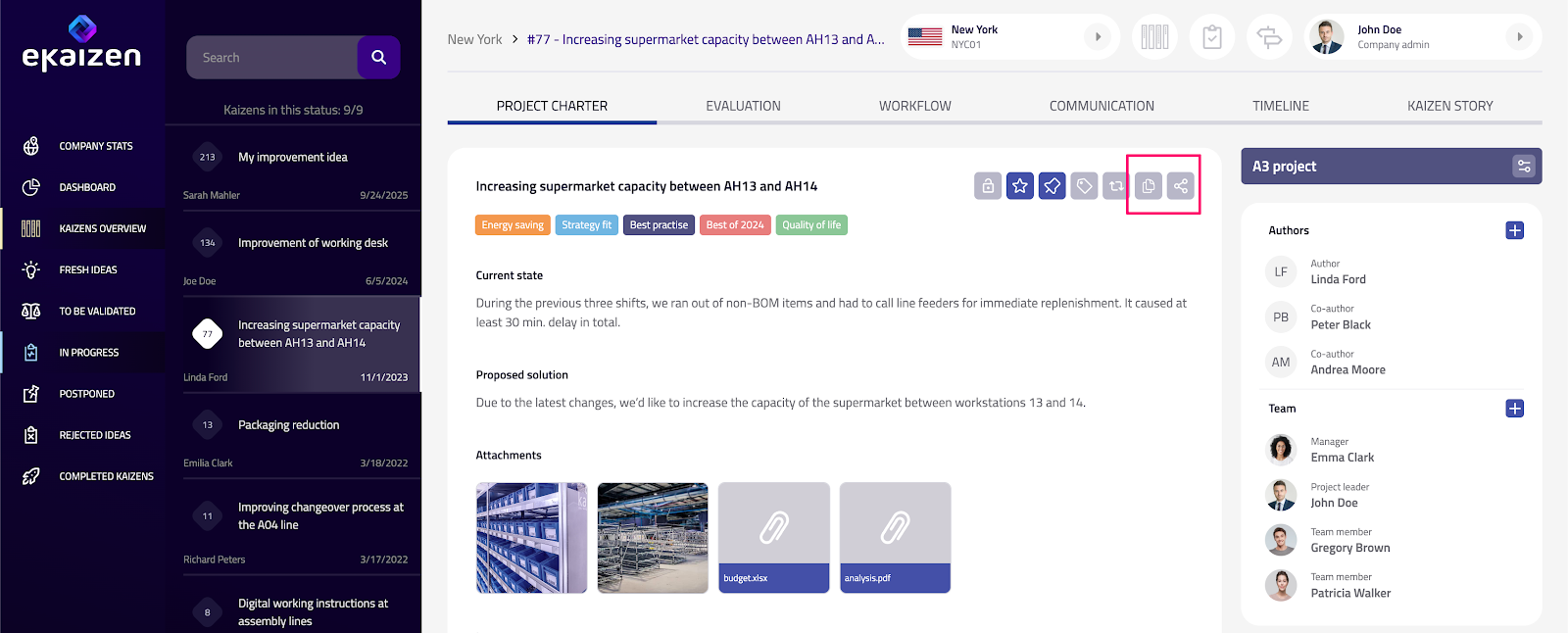
Deploy Locally
Click Deploy locally to create a duplicate of the project. You can adjust the scope of information to be copied - specifying which data should be included in the new project. Use the checkboxes on the right side of the dialog to select which information will be transferred. You can also review and modify key project details, such as the project name or description, before completing the deployment. After the copy is created, open the Project Charter of the deployed project and continue managing it as a standard project.
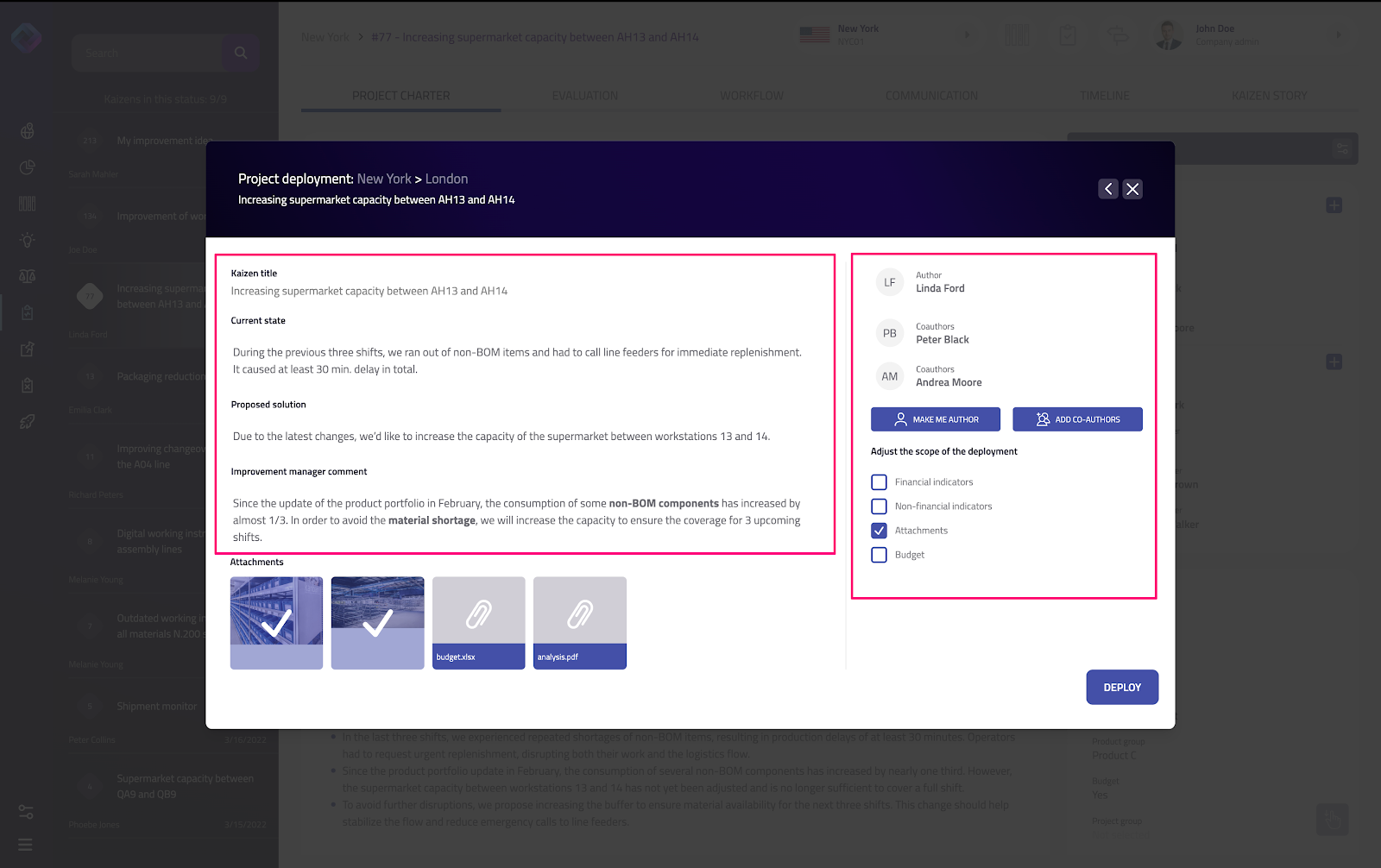
Deploy Globally
Click Deploy globally to open a dialog showing the list of available plants where the project can be shared. At the top of the dialog, you’ll see any plants where this project has already been deployed, along with the current status of each deployment.
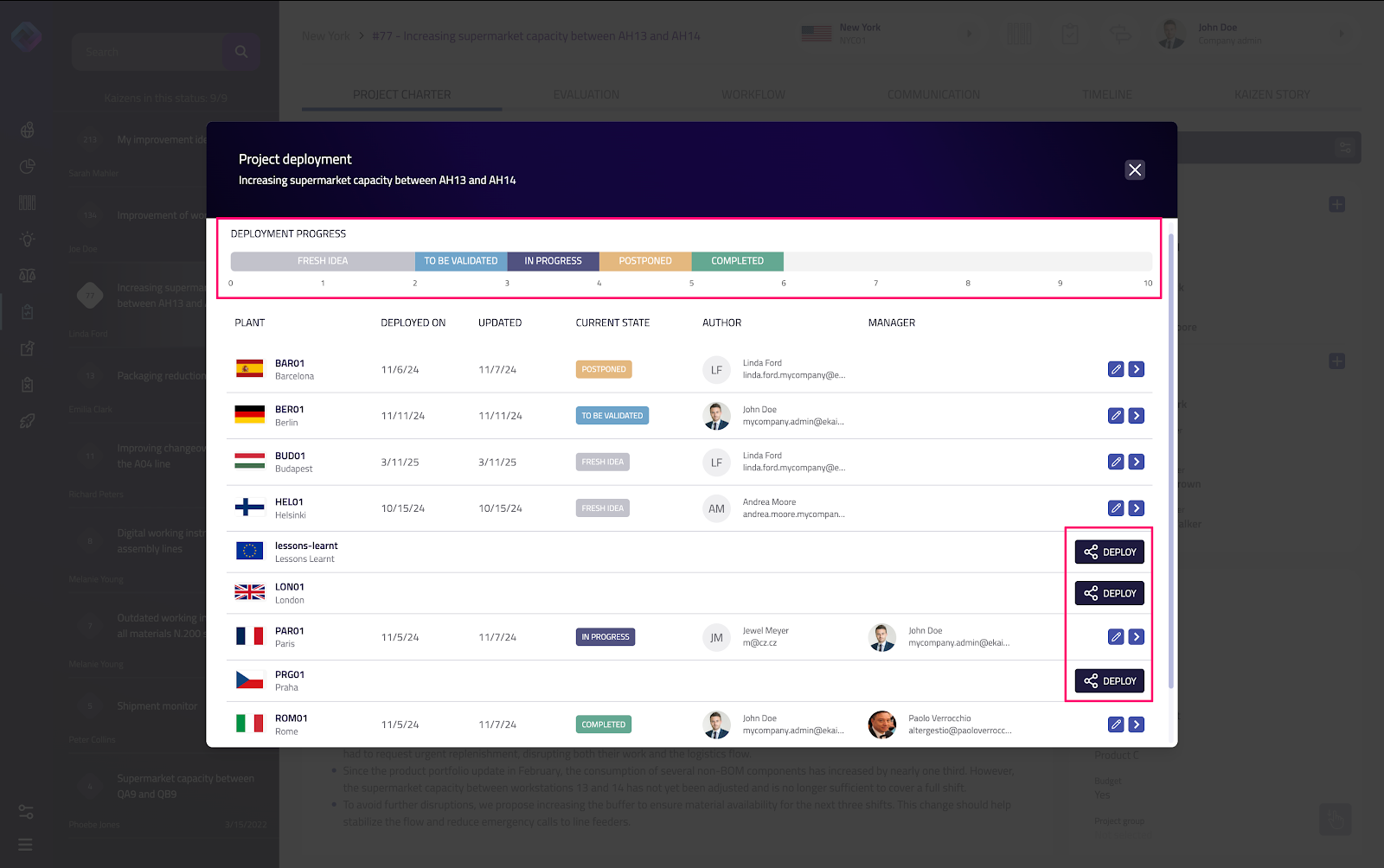
Select the target plant and click [Deploy] to share the project. On the next screen, you can fine-tune the scope of shared information, similar to the process used for local deployment.
Linked Projects
When a project is deployed - either locally or globally - eKaizen automatically creates a Linked Project relation between the original and its deployed copy. See the chapter Linked Projects for more details.
How did we do?
Linked projects
Working with tasks