Table of Contents
Rewards Overview
The Rewards Overview provides a central place to manage all rewards across projects. It is designed for efficient review, filtering, and bulk management of rewards without needing to open each indivi…

Table of Contents
The Rewards Overview provides a central place to manage all rewards across projects. It is designed for efficient review, filtering, and bulk management of rewards without needing to open each individual project.
Access
You can open Rewards Overview from: My overview → Rewards overview
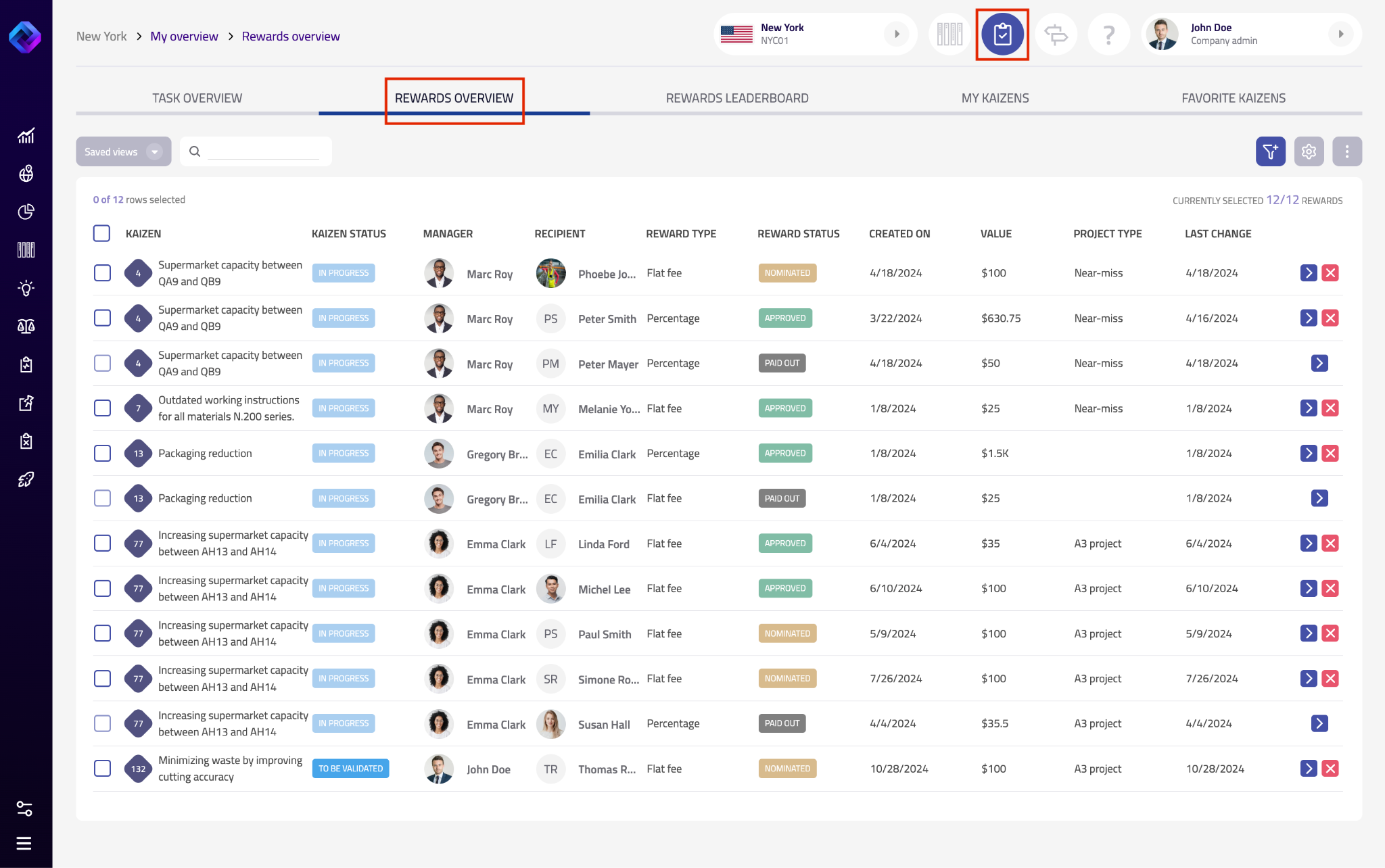
Access to this view depends on user permissions. Not all users can see or manage rewards.
While rewards are created and assigned directly within individual projects, the Rewards Overview allows you to:
- Monitor reward status across all projects
- Approve or pay out rewards more efficiently
- Filter and export reward data for reporting or payroll processing
Filtering rewards
Use the filter icon to narrow down the list of rewards. Available filters include:
- Reward status
- Reward type
- Manager
- Recipient
- Nominated date
- Approved date
- Paid out date
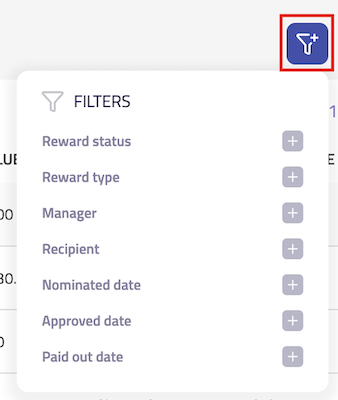
- all approved rewards waiting for payout
- rewards nominated in a specific month
- rewards assigned to a specific employee.
Table columns and customization
Each row represents a single reward assigned within a project.
By default, the table may include:
- Kaizen (project name)
- Kaizen status
- Manager
- Recipient
- Reward type
- Reward status (Nominated, Approved, Paid out)
- Created on
- Value
- Project type
- Last change
- Nominated date
- Approved date
- Paid out date
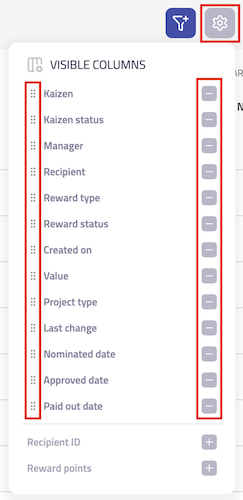
Using the settings (gear) icon, you can:
- Show or hide individual columns
- Change the order of columns
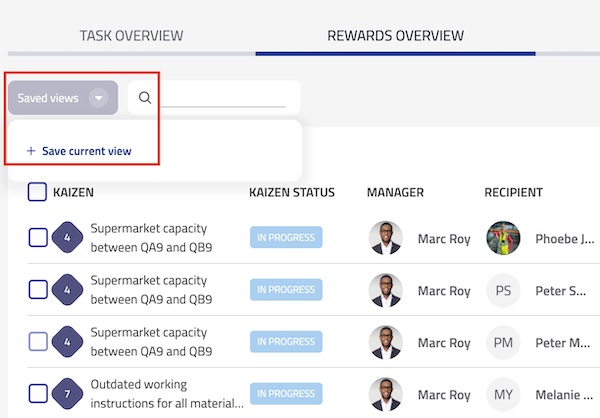
Saved views
You can save your current filter and column setup as a saved view. Saved views allow you to quickly return to the same configuration later, without rebuilding filters each time.
Row actions
At the end of each row, quick action icons are available.

Open (arrow icon): Opens the reward detail, where you can review or edit the reward, update its status, or make changes according to your permissions.
Delete (red X): Removes the reward. It is also removed from the individual project where it was created.
These actions make it easy to review or clean up rewards directly from the overview, without navigating into individual projects.
Exporting rewards
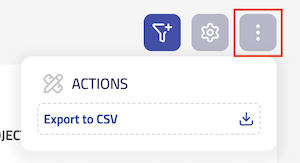
From the Actions menu, you can export rewards to CSV. The export respects your current filters and visible columns, making it suitable for reporting, payroll processing, or further analysis.
How did we do?
Rewards leaderboard
Creating and managing rewards