Table of Contents
Creating and managing rewards
The Rewards feature is used to recognize people who contributed to a kaizen or project. You can reward the author, co-authors, and/or project team members. Access to the Rewards tab depends on user p…

Table of Contents
The Rewards feature is used to recognize people who contributed to a kaizen or project. You can reward the author, co-authors, and/or project team members. Access to the Rewards tab depends on user permissions. Only users with the appropriate rights can view or manage rewards.
Each reward moves through a simple process - from nomination to approval and finally to payout.
Navigation
Open a Kaizen or project and go to the Rewards tab in the header.
What you see on the Rewards tab
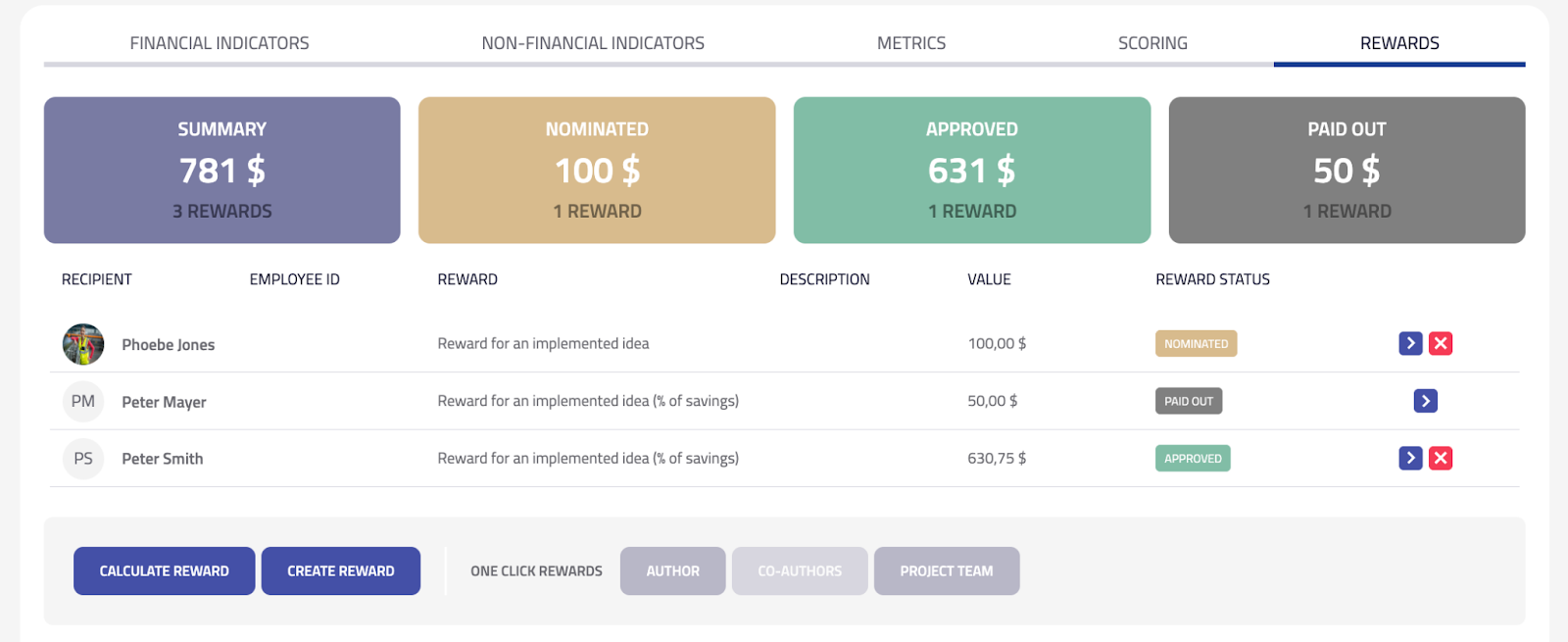
At the top, you’ll find summary tiles showing:
- Summary – total payout across all rewards in this Kaizen
- Nominated / Approved / Paid out – amount and count by status
Below is the table listing all rewards:
- Columns: Recipient, Employee ID, Reward, Description, Value, and Reward status
- Row actions:
- Open (chevron) – view or edit the reward
- Delete (red X) – remove the reward
- Bottom actions:
- Create reward – add a reward manually
- One-click rewards – quickly create rewards for the Author, Co-authors, or Project team
- Calculate reward – open the calculator for automatic reward creation and splitting
Creating or editing a reward
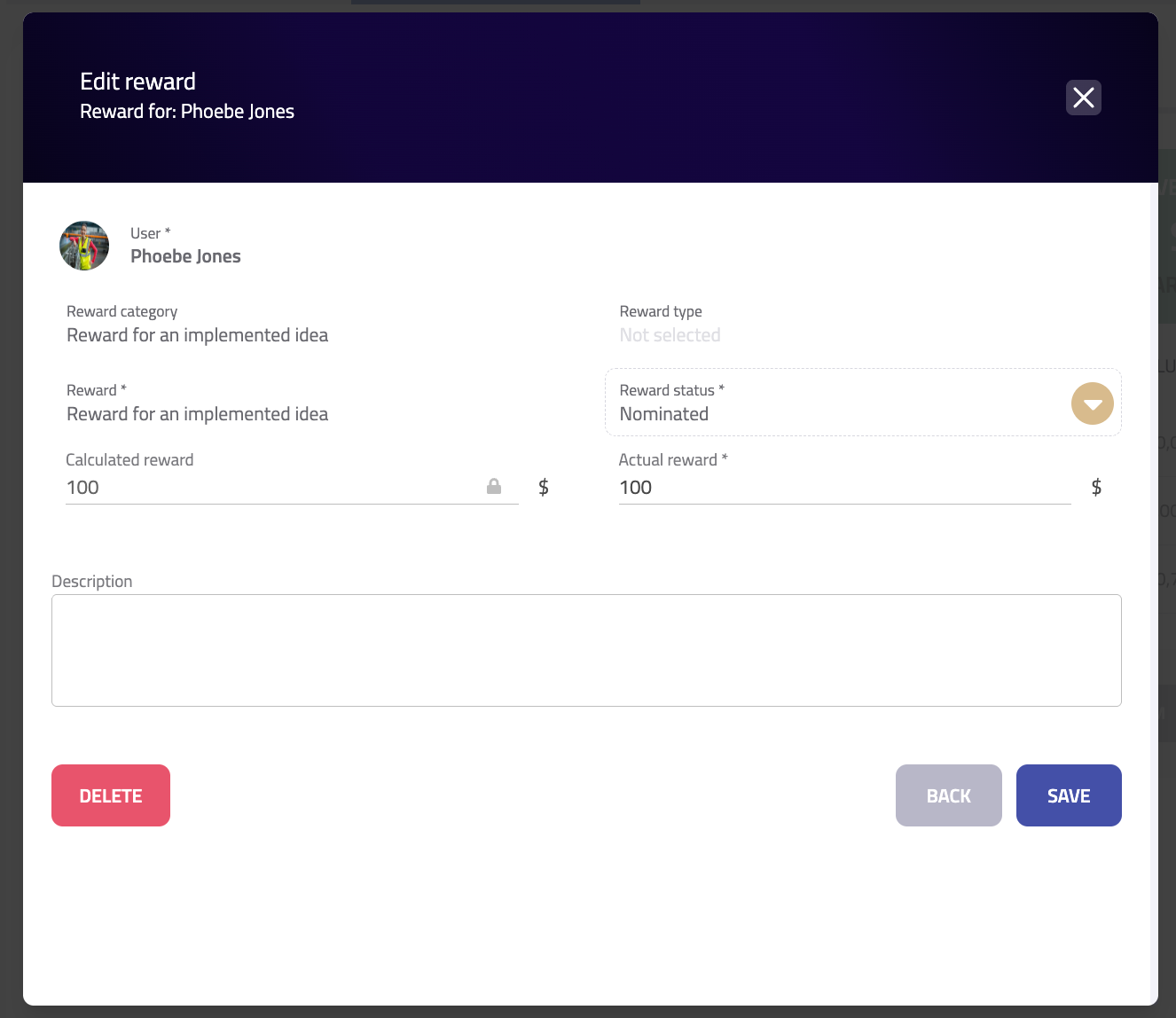
- Click Create reward to add a new one, or open an existing reward to edit it.
- Select the Recipient.
- Choose the Reward type (for example, Reward for an implemented idea).
eKaizen automatically displays a prefilled reward amount based on the setup defined in the administration - either as a fixed value or a percentage of savings. You can always adjust the amount manually when creating or editing a reward. - Set the Reward status – Nominated by default, or another if your process allows.
- Enter or confirm the Actual reward amount (the value to be paid).
- Click Save.
Once a reward is marked Approved, some fields may lock. To modify them, return the reward to Nominated or follow your change-control process.
Reward statuses
Status | Description |
Nominated | Proposed; recipients and amounts defined |
Approved | Reviewed and confirmed for payout |
Paid out | Disbursed; marked as completed |
Managers update statuses based on project progress and company policy.
Paying out rewards
- Open a reward with Approved status.
- Click Mark as paid out (or change status to Paid out).
- Record a payment reference or date if required.
Use the summary tiles to track all planned payouts for the period and confirm which ones are still waiting for approval or payment.
How did we do?
Rewards Overview
Using metrics