Table of Contents
Task overview
The Task overview is the central place to manage all tasks across the projects you are involved in. It can be accessed anytime via the “to-do list” icon in the header of the application. This view he…

Updated
by eKaizen Support
Table of Contents
The Task overview is the central place to manage all tasks across the projects you are involved in. It can be accessed anytime via the “to-do list” icon in the header of the application. This view helps you stay on top of what’s assigned to you and, if needed, see and manage tasks of others.
If you manage several projects, the Task overview is the fastest way to see everything assigned to you - without opening individual activities.

What you see by default
When you open Task overview:
- Only tasks assigned to you are shown.
- Tasks are grouped by their current status (To-do, Done, Waiting, Rejected).
Filters and presets
To make task management easier, you can use filters:
- By user – if you have sufficient user rights, you can switch from your own tasks to tasks of other users.
- By attributes – filter by status, kaizen, priority, due date, and more.
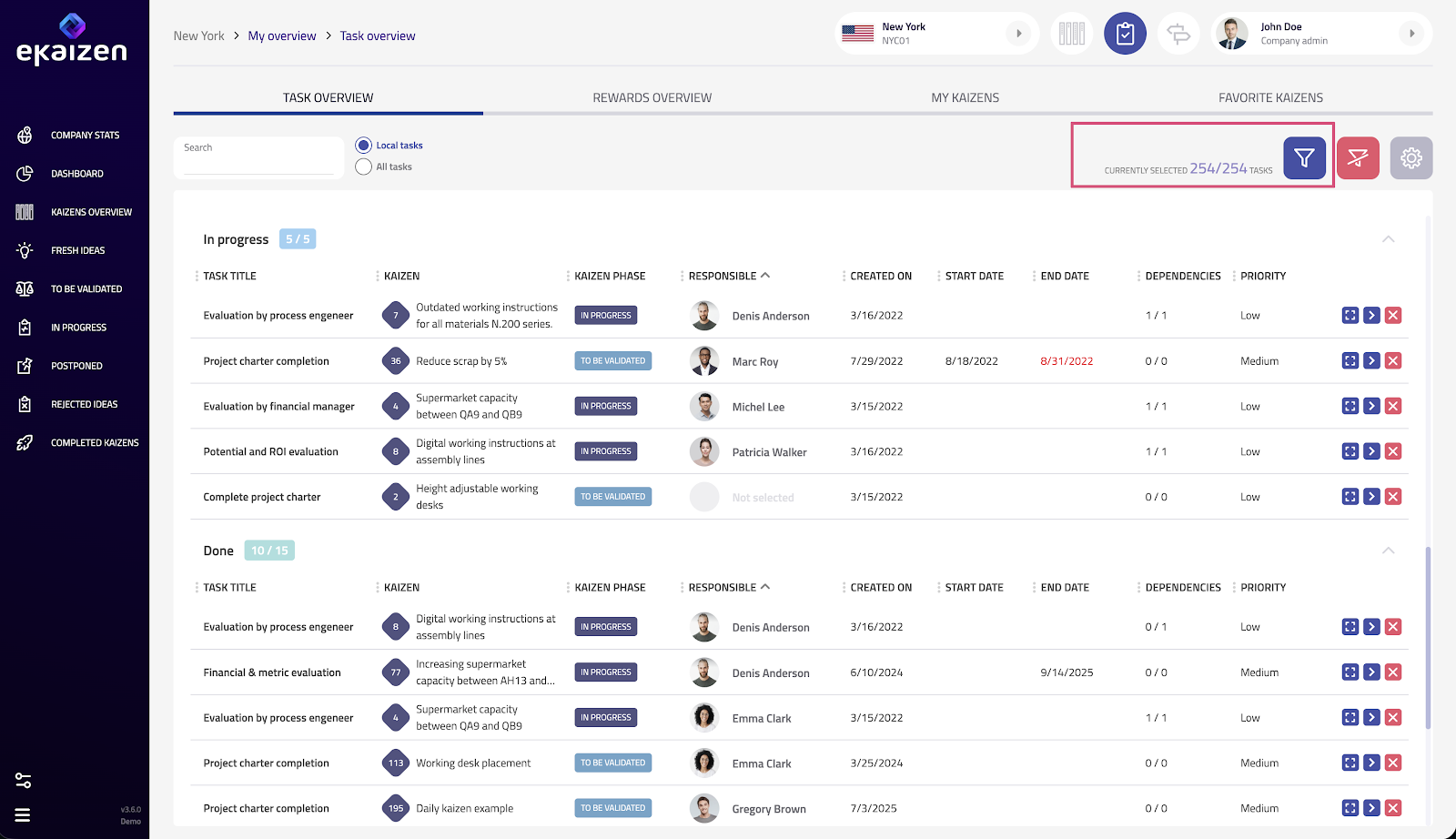
Once you’ve set filters:
- Save the setup as a preset.
- Apply the preset anytime to instantly reload the same filtered view.Use presets to save your preferred filters (for example, “My overdue tasks”). It saves time and helps you focus on what matters most.
Customizing the table
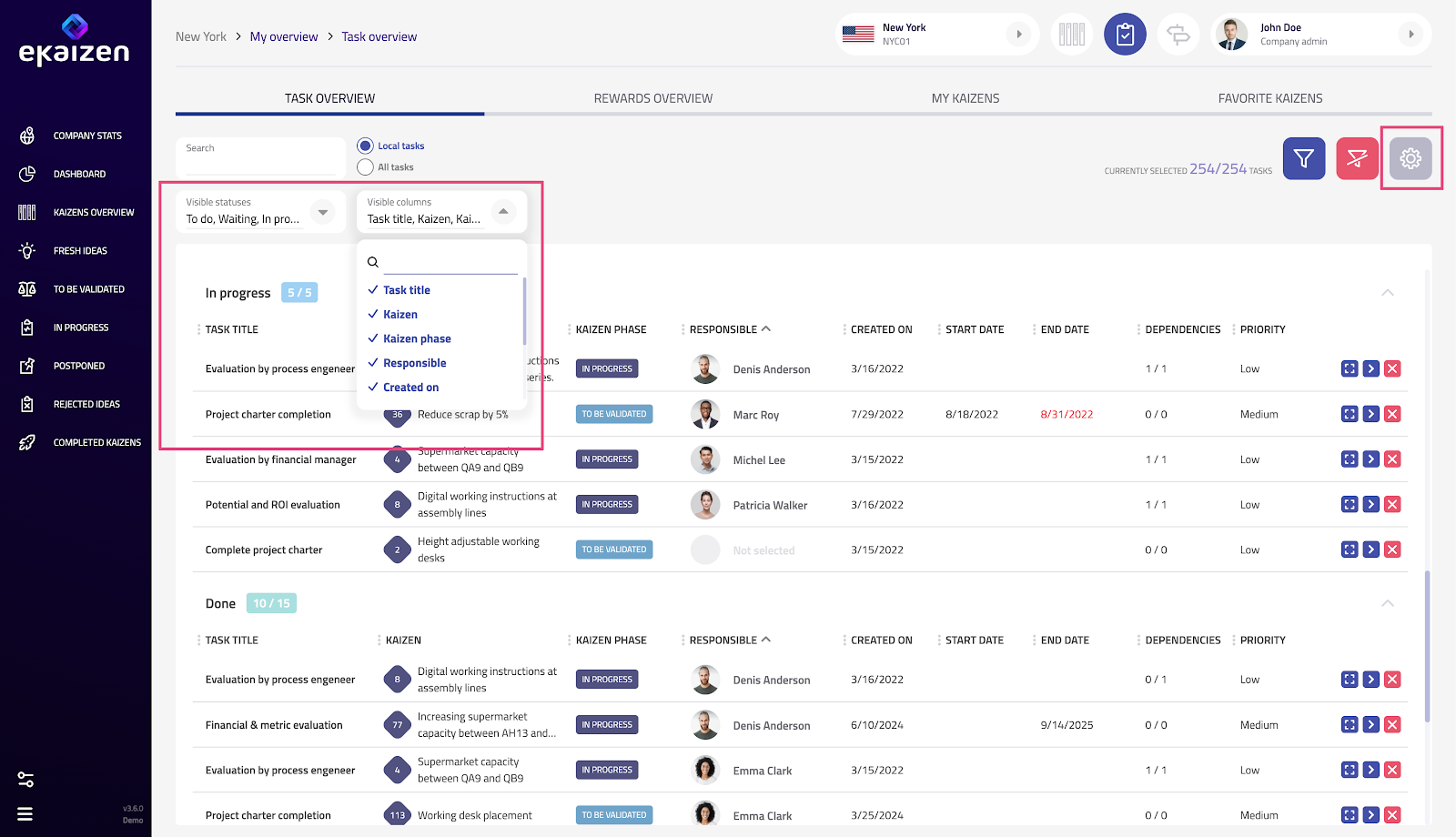
You control how the tasks are displayed:
- Use the gear (cog) icon to choose which columns and information are shown. You can show or hide individual columns, as well as include or exclude tasks of specific statuses.
- Drag & drop to adjust the order and size of columns.
- Export the current view (with filters applied) as a CSV file.
Managing tasks
Each task has its own row in the table, with quick actions at the end:
- Edit – open a dialog window to change details directly in the Task overview.
- Open in project – go to the full detail of the task in its original project.
- Delete – permanently remove the task - both from the Task overview and from the related project workflow.
- Tasks can also be reassigned in bulk to another user, for example when an employee is on long-term leave or leaves the company.
Didn’t find what you were looking for? Reach out to your administrator, your eKaizen contact person or write to contact@ekaizen.app.
How did we do?
Project Presentations